How to Install Java JDK on Windows
Before you can write your first Java program, you need to install the Java Development Kit (JDK). Think of the JDK as a toolbox for Java developers. It contains everything required to write, compile, and run Java programs.

Install Java (JDK)
Before you can write your first Java program, you need to install the Java Development Kit (JDK).
Think of the JDK as a toolbox for Java developers. It contains everything required to write, compile, and run Java programs.
In this guide, you'll install Java on Windows in just a few minutes.
What is JDK?
Quick Answer :
Think of Java like learning English.
Java Language → The words
JDK → The notebook, pen, and dictionary needed to write
Without the JDK, you cannot create Java programs.
Before You Begin
Make sure you have:
Windows 10 or Windows 11
An internet connection
Administrator access (recommended)
New to Java?
Before installing Java, you may want to read:
These articles explain what Java is and why you'll be installing the Java SE Development Kit (JDK).
Step 1 : Download the JDK
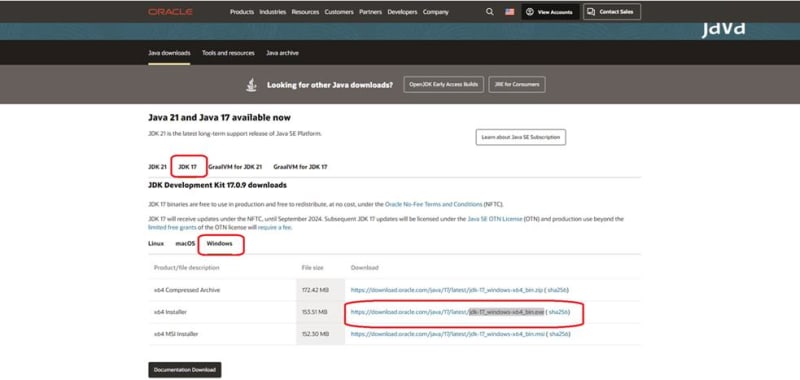
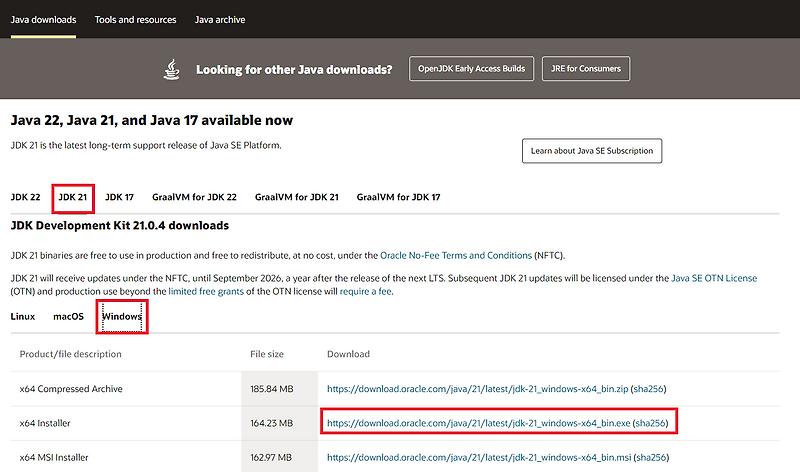
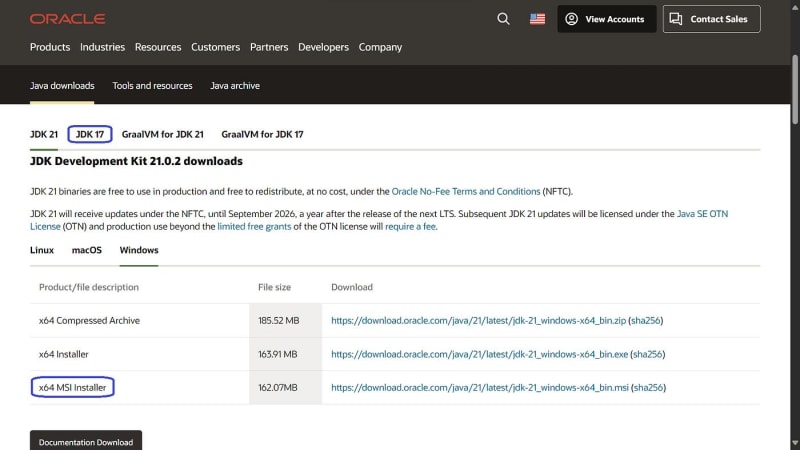
Visit the official Oracle download page:
📄 Official Download
Choose:
Windows
x64 Installer (.exe)
Download the installer.
The file name will look similar to:
jdk-25_windows-x64_bin.exeStep 2: Run the Installer
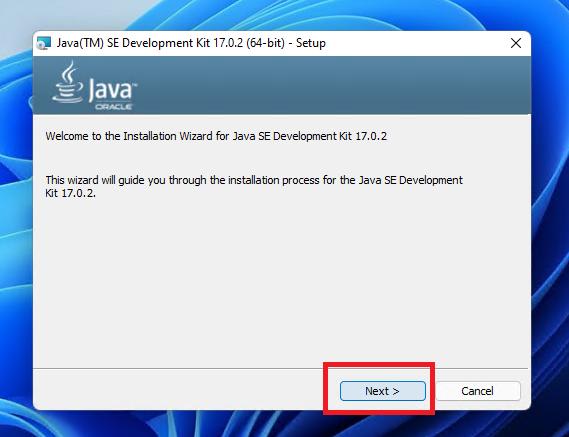


Open your Downloads folder.
Double-click the installer.
When the setup wizard opens, click:
Click:
NextThe installation will begin.
Step 3: Choose the Installation Folder
The installer will suggest a location similar to:
C:\Program Files\Java\jdk-25For beginners, it's best to leave this unchanged.
Click:
NextThe installation will begin.
Step 4: Finish Installation
After a few moments, you'll see the installation is complete.
Click:
Finish🎉 Congratulations! Java is now installed on your computer.
Step 5: Verify Java Installation
Now let's make sure Java was installed correctly.
Press:
Windows + RType:
cmdPress Enter.
A Command Prompt window will open.
Run this command:
java -versionYou should see output similar to:
java version "25"
Java(TM) SE Runtime Environment
Java HotSpot(TM) 64-Bit Server VM
Now check the Java compiler:
javac -versionExpected output:
javac 25If both commands work, Java is installed successfully.
Step 6: If Java Isn't Recognized
If you see this message :
'java' is not recognized as an internal or external commandWindows can't find Java.
This usually means the PATH variable hasn't been configured.
Don't worry—it's easy to fix.
Step 7: Set JAVA_HOME


Search for:
Environment VariablesOpen:
Edit the system environment variablesClick:
Environment VariablesUnder System Variables, click:
NewEnter:
Variable Name
JAVA_HOMEVariable Value
C:\Program Files\Java\jdk-25Click OK.
Step 8: Update the PATH Variable
Find the Path variable.
Click:
EditThen click:
NewPaste:
%JAVA_HOME%\binClick OK until all windows close.
Restart Command Prompt.
Run:
java -versionEverything should now work correctly.
Verify Everything
Run these commands one by one:
java -versionjavac -versionwhere javaExpected output:
C:\Program Files\Java\jdk-25\bin\java.exeCommon Mistakes
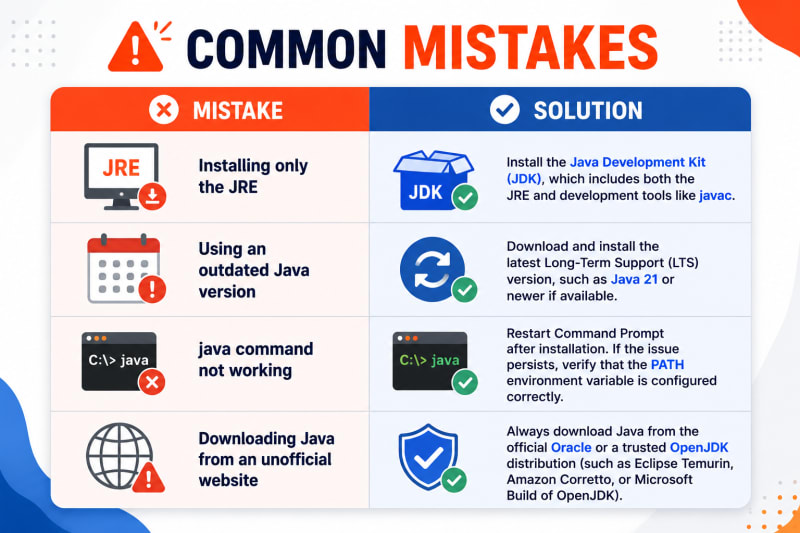
💡 Did You Know?
The JDK includes the Java compiler (javac), which converts your Java source code into bytecode before it runs.
You'll learn exactly how this works in our Java Compilation Process and Bytecode Explained tutorials.
Quick Test
Run these commands one by one.
java -versionjavac -versionwhere javaIf all commands work correctly, you're ready to start coding.
Quick Summary
By following this guide, you learned how to:
Download the Java JDK
Install it on Windows
Verify the installation
Configure
JAVA_HOMEif neededCheck that Java is working correctly
You're now ready to write your first Java program.
Frequently Asked Questions
1. Do I need the JDK or the JRE?
You need the JDK if you want to write and compile Java programs.
2. Is Java free?
Yes. Several free OpenJDK distributions are available, and Oracle also provides free downloads for many development uses.
3. Can I install multiple Java versions?
Yes. Many developers keep multiple JDK versions installed for different projects.
4. Which Java version should beginners install?
The latest Long-Term Support (LTS) release is usually the best choice for learning and most real-world projects.
5. Can I write Java programs without an IDE?
Yes. You can use a simple text editor and the Command Prompt. Later, you'll install IntelliJ IDEA to make development easier.
Previous Lesson
If you're still wondering which Java edition you installed, read that lesson first to understand the different Java platforms.
Next Lesson
In the next tutorial, you'll learn how to:
Download IntelliJ IDEA Community Edition
Install the IDE
Configure the JDK
Create your first Java project
Run your first Java application
Continue Learning
Explore more beginner-friendly Java tutorials:
Java Program Structure
Have a Question?
If something isn't clear or you get stuck while learning Java, leave a comment below.
We'll do our best to explain it with simple words, practical examples, and code you can actually understand.
Happy Coding! ☕
Follow TheTechLane
Want more developer tutorials, programming tips, and tech updates?
Follow TheTechLane on LinkedIn, X, Instagram, Threads, and Pinterest to stay connected and catch new tutorials when they go live.
Learn. Build. Share.
— TheTechLane