How to Install IntelliJ IDEA for Java Development (2026 Guide)
Learn how to install IntelliJ IDEA on Windows, configure Java JDK, create your first Java project, and avoid common setup mistakes with this step-by-step beginner guide.
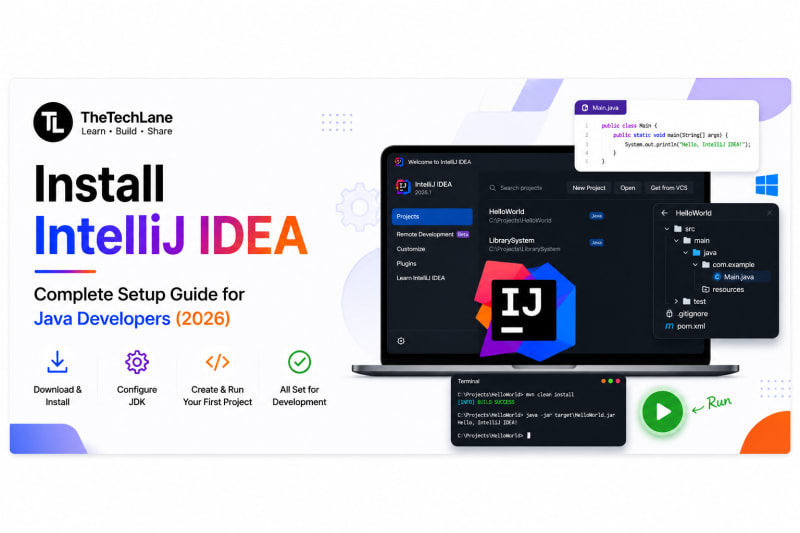
Introduction
IntelliJ IDEA is one of the most popular Java IDEs used by beginners and professional developers alike. It provides smart code completion, debugging, refactoring tools, Maven and Gradle support, Git integration, and many productivity features that make Java development faster and easier.
In this guide, you'll learn how to download, install, and configure IntelliJ IDEA on Windows. By the end, you'll have your development environment ready to write and run Java programs.
Quick Answer
To install IntelliJ IDEA:
Download IntelliJ IDEA Community Edition.
Run the installer.
Enable Desktop Shortcut.
Associate Java files.
Install the JetBrains Runtime.
Launch IntelliJ.
Configure your installed JDK.
Create your first Java project.
What is IntelliJ IDEA?
Explain:
Java IDE
Developed by JetBrains
Supports Java, Kotlin, Groovy, Scala and many other languages
Used by millions of developers
Smart code completion
Debugger
Refactoring
Version Control
Maven
Gradle

Why Use IntelliJ IDEA?

Community vs Ultimate

Recommendation box:
If you're just starting Java, install Community Edition. It's free and includes everything you need for learning Java.
Prerequisites
Before installing IntelliJ IDEA, make sure you have the following:
Java JDK installed (If you haven't installed it yet, follow our How to Install Java JDK guide.)
Windows 10 or Windows 11
At least 8 GB RAM (16 GB recommended for a smoother experience)
4 GB of free storage space
A stable internet connection to download IntelliJ IDEA and any required components
Step 1 — Download IntelliJ IDEA
Explain:
Visit the official JetBrains website.
Click Download.
Choose Community Edition.
Select the Windows installer.
Download the
.exefile.

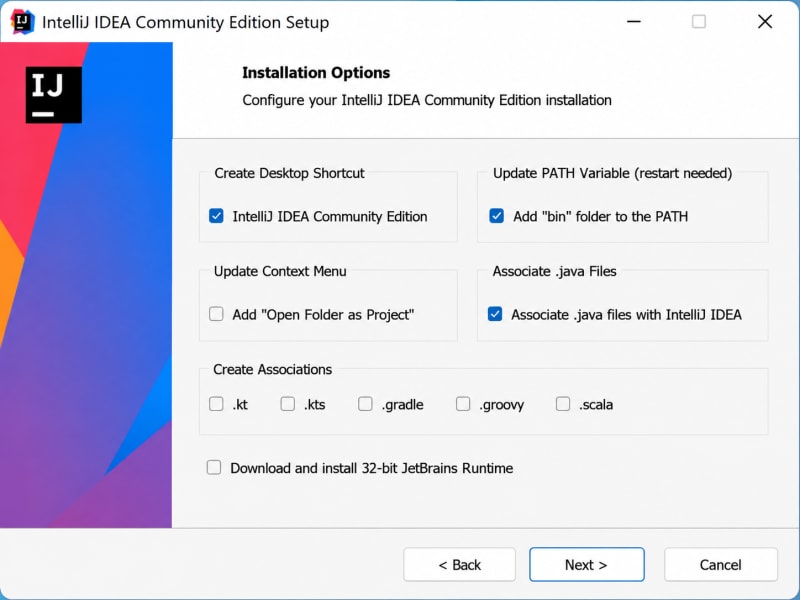
Step 2 — Install IntelliJ IDEA
Walk through:
Double-click installer.
Click Next.
Choose installation folder.
Create Desktop Shortcut.
Add "Open Folder as Project".
Associate
.javafiles.Install.
Step 3 — Launch IntelliJ IDEA
Explain:
Accept license.
Import settings (optional).
Choose Light/Dark theme.
Finish setup.
Step 4 — Configure Java JDK
Explain:
New Project
SDK
Add JDK
Browse installed JDK folder
Finish

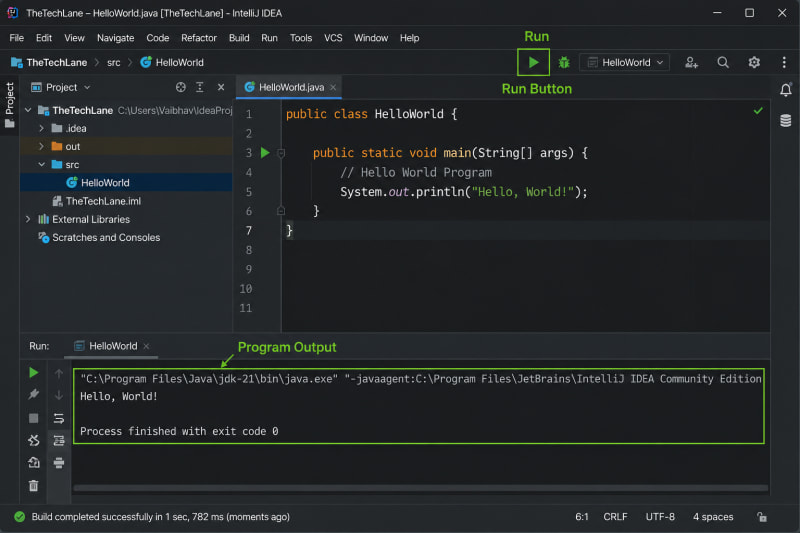
Step 5 — Create Your First Java Project
public class Main {
    public static void main(String[] args) {
        System.out.println("Hello, TheTechLane!");
    }
}
Explain:
Main class
main() method
println()
Run button
Project Structure
HelloJava/
│
├── src/
│   └── Main.java
│
├── .idea/
│
└── HelloJava.iml
Explain each folder.
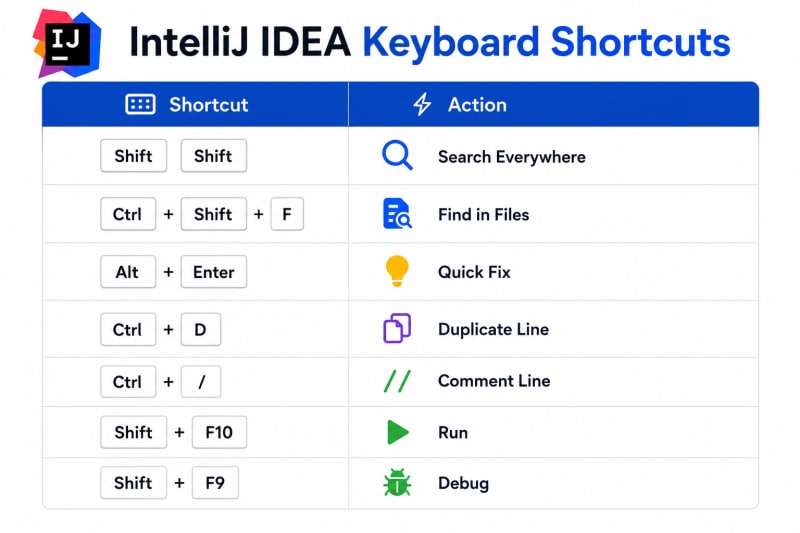
Keyboard Shortcuts
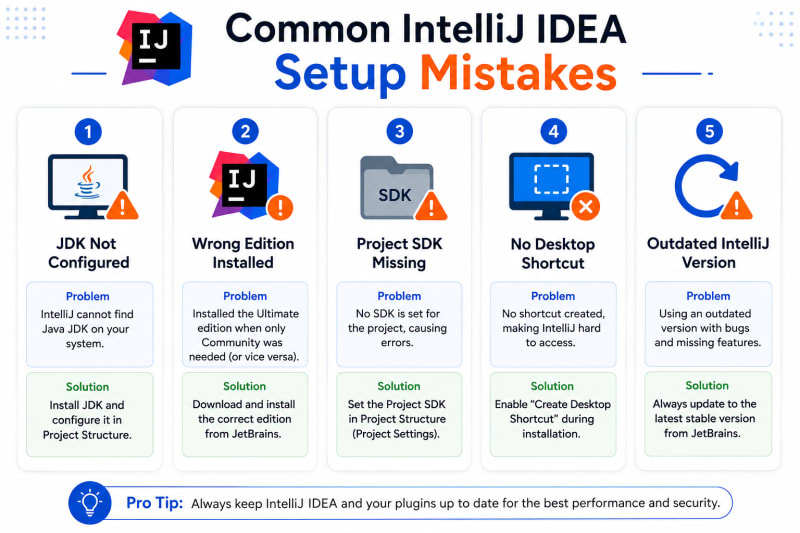
Common Installation Problems
Quick Summary
By following this guide, you learned how to:
Download IntelliJ IDEA Community Edition
Install IntelliJ IDEA on Windows
Configure the Java JDK in IntelliJ IDEA
Create your first Java project
Run your first Java program
Troubleshoot common IntelliJ IDEA setup issues
Your Java development environment is now ready, and you're all set to start building Java applications.
Frequently Asked Questions (FAQs)
1. Is IntelliJ IDEA free?
Yes. IntelliJ IDEA Community Edition is free and open source, while Ultimate Edition is a paid version with additional enterprise features.
2. Should beginners use IntelliJ IDEA?
Yes. The Community Edition is beginner-friendly and provides everything needed to learn Java programming.
3. Can I use IntelliJ IDEA without Java installed?
You can install IntelliJ IDEA without Java, but you'll need a JDK installed to create, compile, and run Java applications.
4. Which IntelliJ IDEA edition should I download?
If you're learning Java, download the Community Edition. Choose Ultimate Edition only if you need advanced frameworks like Spring Boot or Jakarta EE.
5. Does IntelliJ IDEA support Spring Boot?
Yes. Spring Boot support is available in the Ultimate Edition. The Community Edition has limited support.
6. Can IntelliJ IDEA open Maven projects?
Yes. IntelliJ IDEA has built-in support for Maven projects and automatically imports dependencies from the pom.xml file.
Key Takeaways
IntelliJ IDEA is one of the most popular IDEs for Java development.
The Community Edition is free and ideal for beginners.
A Java JDK must be installed before creating Java projects.
Configuring the correct Project SDK ensures your applications compile and run successfully.
IntelliJ IDEA includes powerful features like code completion, debugging, Git integration, and Maven support.
With IntelliJ IDEA set up, you're ready to start writing, running, and debugging Java applications efficiently.
Previous Lesson
What's Next?
Now that IntelliJ IDEA is installed and configured, it's time to write and run your first Java application.
Next Lesson → Your First Java Program
Continue Learning
Explore more beginner-friendly Java tutorials:
Java Program Structure
Have a Question?
If you run into any issues while installing or configuring IntelliJ IDEA, leave a comment below.
We'll help you troubleshoot the problem with clear explanations and practical solutions so you can get back to coding quickly.
Happy Coding! ☕
Follow TheTechLane
Want more Java tutorials, programming tips, and developer resources?
Follow TheTechLane on LinkedIn, X, Instagram, Threads, and Pinterest to stay updated whenever a new tutorial is published.
Learn. Build. Share.
— TheTechLane